Macro Workflow IV
$42.00
All-new Lightroom AI Adaptive presets designed for macro photography.
Macro Workflow IV Overview!
All-new Macro AI Adaptive Presets with built-in AI selections for Adobe Lightroom and Adobe Camera Raw. Desktop and Mobile ready.
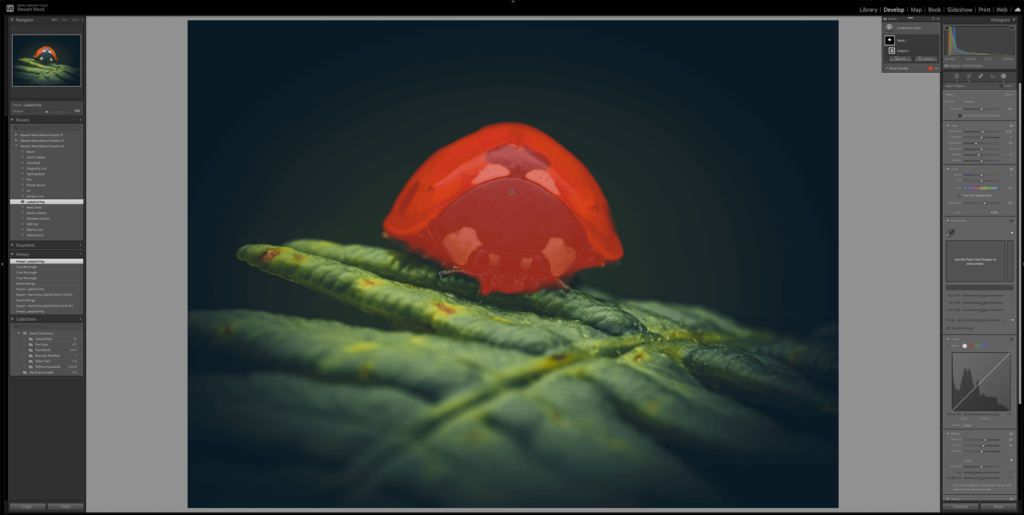
AI Adaptive means the preset creates an automatic mask (Subject/Background) and applies adjustments only where needed, with an Amount slider to fine-tune strength.
This collection includes 66 all-new presets, organised into a complete workflow:
(A) Clean Up (8) – noise reduction, dust/spot removal, and lens correction
(B) Exposure (4) – quick exposure adjustments
(C) Colour Looks (36) – colour grading and “look” presets
(D) Background (AI) + Vignettes (4) – AI background adjustments and vignette effects
(E) Finishing (10) – grain and sharpening controls
(F) Subject (AI) (4) – subject-focused enhancements to help your subject stand out
Includes free updates for the lifetime of Macro Presets V4, so your presets stay current as the V4 range evolves.
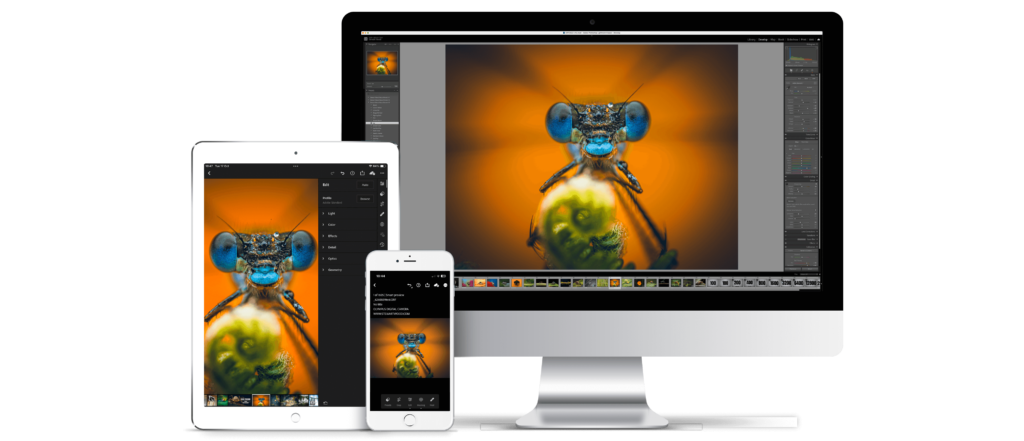
Desktop, tablet or mobile:
About this collection:
- 66 Presets built for Macro Photography.
- Compatible with all current Adobe Creative Cloud versions of Lightroom, Adobe Camera Raw, and Lightroom Mobile.
- Supported apps: Lightroom CC (v9.0+), Lightroom Classic (v15+), and Adobe Camera Raw (v18+).
- Works with RAW, TIFF, and JPEG files.
- Use on Mac and Windows, plus iOS and Android via Lightroom Mobile.
- Instant download.
AI Adaptive Presets:
Macro Workflow IV (Formerly Macro Presets V4) is a professional macro editing toolkit for Adobe Lightroom and Adobe Camera Raw, built around a simple principle: fast edits, consistent results, and full control. The actions combine clean-up tools, exposure refinements, signature colour looks, background exposure, finishing polish, and AI-powered subject enhancements, each adjustable via the Amount slider so you can dial in the exact intensity you need. Whether you want subtle realism or bold impact, Macro Workflow IV gives you a repeatable workflow that keeps your images looking intentional.
How to use the actions (recommended workflow)
Use the actions top-to-bottom. It’s designed as a complete macro editing pipeline, so each block builds on the one before it.
1) (A) Clean Up
Start here to get a clean, neutral file. Apply noise reduction as needed, remove dust/spots, and toggle lens correction on/off depending on the look you want.
2) (B) Exposure
Dial in brightness quickly with the exposure presets. This keeps your base exposure consistent before you commit to a colour look.
3) (C) Colour Looks
Choose one Colour Look to set the overall mood. These affect colour and “feel” rather than exposure, so you can audition looks without disrupting your base edit.
4) (D) Background + Vignettes
Use Background Lighten/Darken and the vignettes to guide the viewer’s eye and reduce distractions.
5) (E) Finishing (Grain + Sharpening)
Add final polish. Use sharpening to enhance perceived detail and grain to add texture and cohesion where it suits the image.
6) (F) Subject (AI)
Finish by enhancing the subject only. Use options like Pop and Subject Sharpen to increase separation and draw attention to key features (typically eyes, face, or critical detail).
Fine-tuning
Every preset supports the Amount slider, so you can treat these as adjustable building blocks rather than fixed effects.
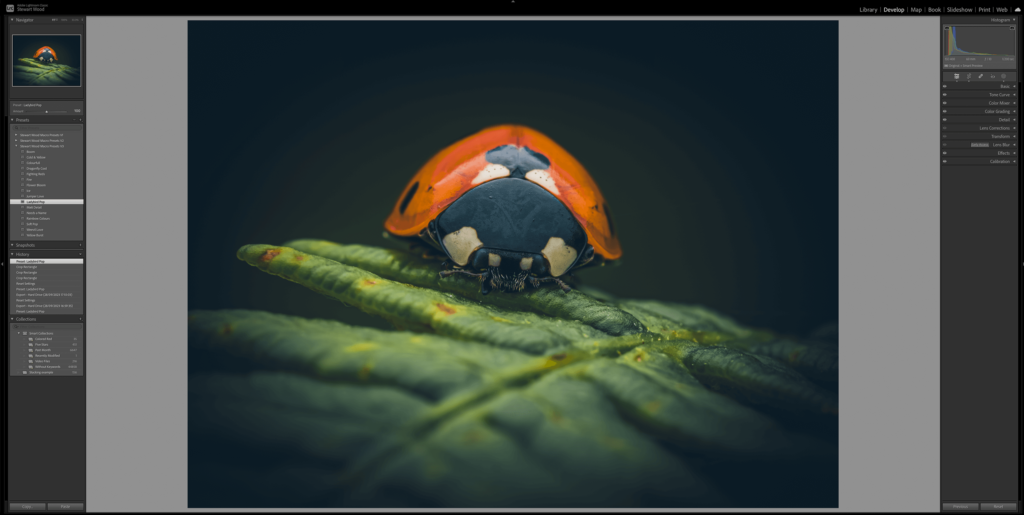
Before and after:
AFTER
BEFORE
AFTER
BEFORE
AFTER
BEFORE
AFTER
BEFORE
AFTER
BEFORE
AFTER
BEFORE
AFTER
BEFORE
AFTER
BEFORE
Q: WHY DID YOU CHANGE THE NAME OF THE PRESETS?
A: This new pack goes beyond just one-click presets and becomes a complete editing workflow. The new name reflects that new workflow.
Q: WHAT DOES THE “AI” MEAN IN THE PRESET?
A: These presets take advantage of the AI selection tools within Lightroom, they will attempt to select the subject and make adjustments to it. To learn more, watch the video above.
Q: WHAT IF I WANT TO ADJUST THE INTENSITY OF A PRESET?
A: In the top left-hand corner of the Develop module, there is an “Amount” slider that you can slide to adjust the overall intensity of the preset. You can also go in and adjust each individual slider on the right-hand side of the screen. This option is recommended for advanced users.
Q: I BOUGHT THE PRESET PACK BUT DON’T SEE AN EMAIL TO DOWNLOAD IT.
A: Please check the spam folder in your inbox. Allow 1-3 minutes for digital delivery. Alternatively, you can log into your account here and download the files.
Q: ARE THE PRESETS JUST FOR MACRO PHOTOGRAPHY?
A: No, as you can see from the two examples above, you can use the macro presets V4 on images other than macro.
Q: WILL MY IMAGE LOOK PERFECT IN ONE CLICK?
A: It’s possible with one click that your image might look perfect. More often than not, you will need to tweak your exposure since every image is slightly different. Keep in mind that the goal of these presets is to give you a starting point with your editing. You will need to adjust exposure, sharpness, noise reduction, and the texture sliders for each individual image.
Q: HOW DO I INSTALL THE PRESETS INTO LIGHTROOM?
A: Click the plus (+) button that’s next to the presets folder in Lightroom CC. Next, find the zip file named Stewart Wood Macro Presets V4 either on your desktop or in your downloads folder. Once installed, completely close out of Lightroom and then reopen it, and the presets should all be there. (See the video above for more information)
Q: WILL THESE PRESETS WORK ON JPEGS?
A: These presets were designed to specifically work with a RAW file format in the Adobe Colour profile, but they will work with other file formats.
Q: I DON’T SEE ALL OF THE PRESETS IN LIGHTROOM, DID THEY NOT IMPORT CORRECTLY?
A: First, make sure that you are editing a RAW file and not a JPEG image. Only select presets will be available when editing JPEG since these presets are designed to specifically work with RAW files. Click on a RAW file, and everything should show up.
Q: AI DIDN’T MASK CORRECTLY?
A: If a mask misses an edge, open Masking and refine Add/Subtract, the preset is the starting point.
Q: LIGHTROOM MOBILE NOTE:
A: Adaptive presets sit in the Premium area in Lightroom Mobile (that’s how Adobe presents adaptive presets in-app), so users should expect to see and adjust them there.
Q: CAN I RETURN THE PRESETS AFTER PURCHASING THEM?
A: The presets are non-refundable.
Have More Questions?
Only logged in customers who have purchased this product may leave a review.
Reviews
There are no reviews yet.